3. BotDefense
F5 Distributed Cloud Bot-Defense protect against a broad set of bot-based attacks including credential stuffing, account takeover, fraud, and account abuse. This guided lab will step through the concepts found in the How to guide. For additional review see the Simulator.
Signature-based Bot protection
Review the Bot signature configuration and view logged security events.
In the left-hand navigation menu, expand the
Securitysection, clickApp Firewall. Towards the right side of the blocking-app-firewall, click the three dots in theActionscolumn, clickManage Configuration,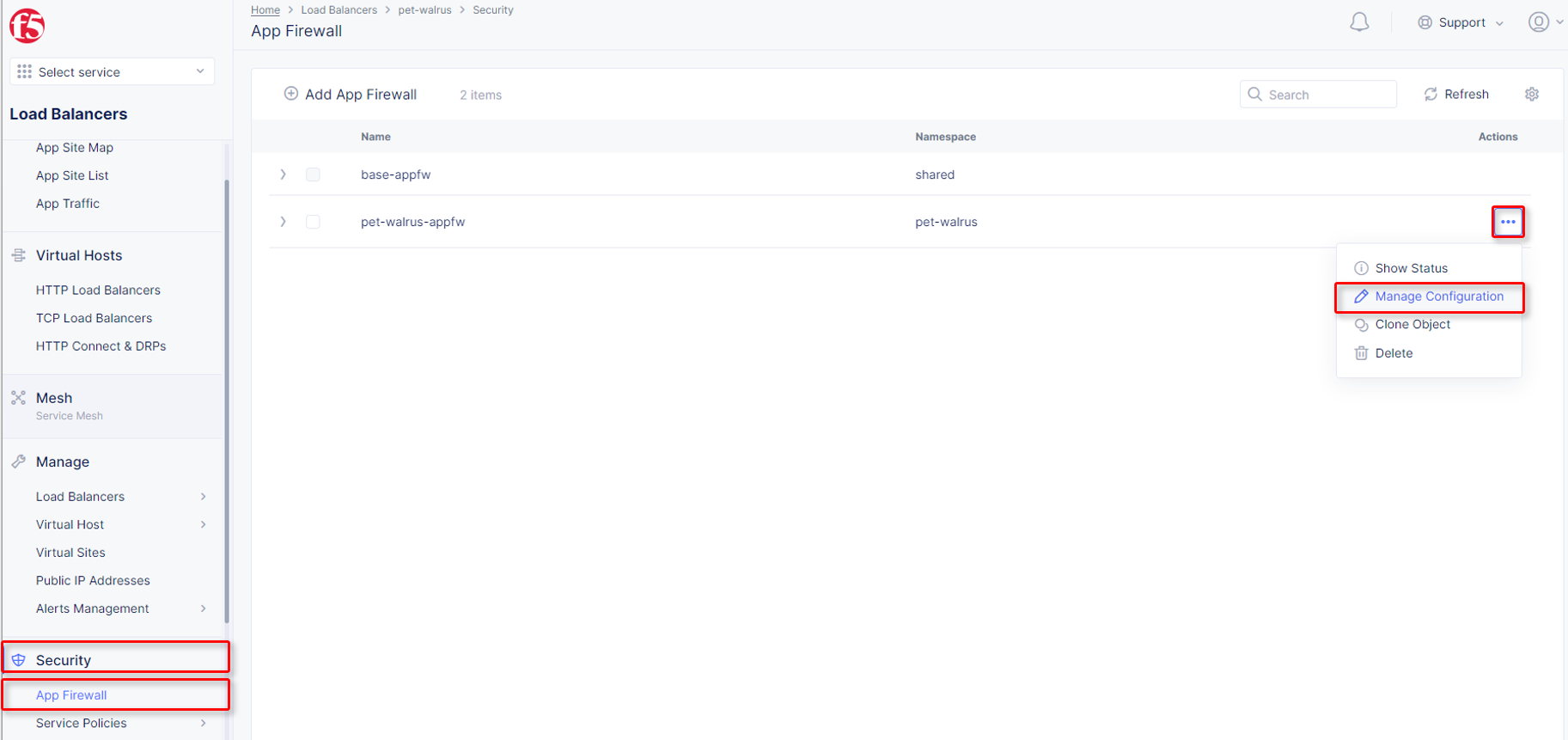
Click
Edit Configurationin the top right corner.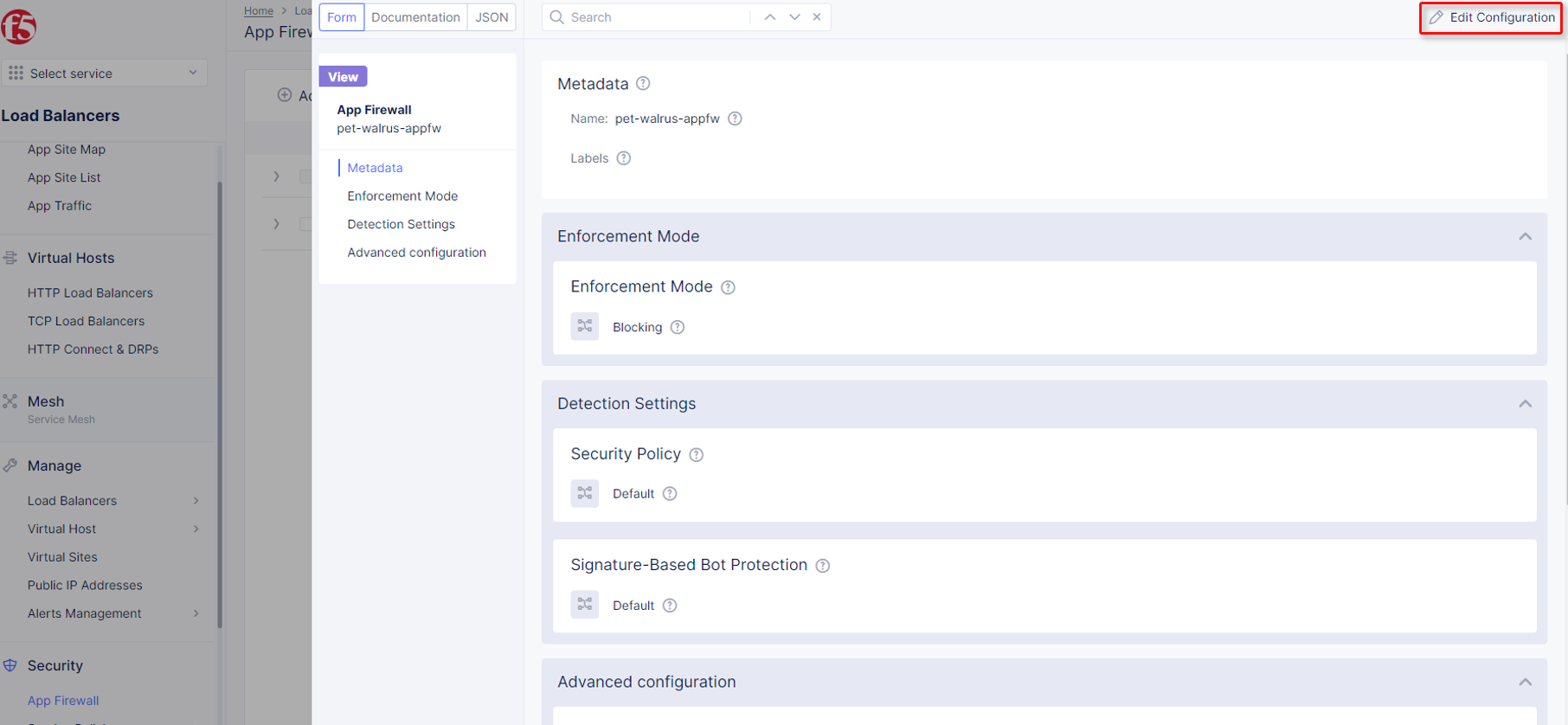
On the left-side navigation, click
Detection Settingsand the in theDetection Settingssection, selectSignature-Based Bot Protectionfrom the dropdown menu, and selectCustom.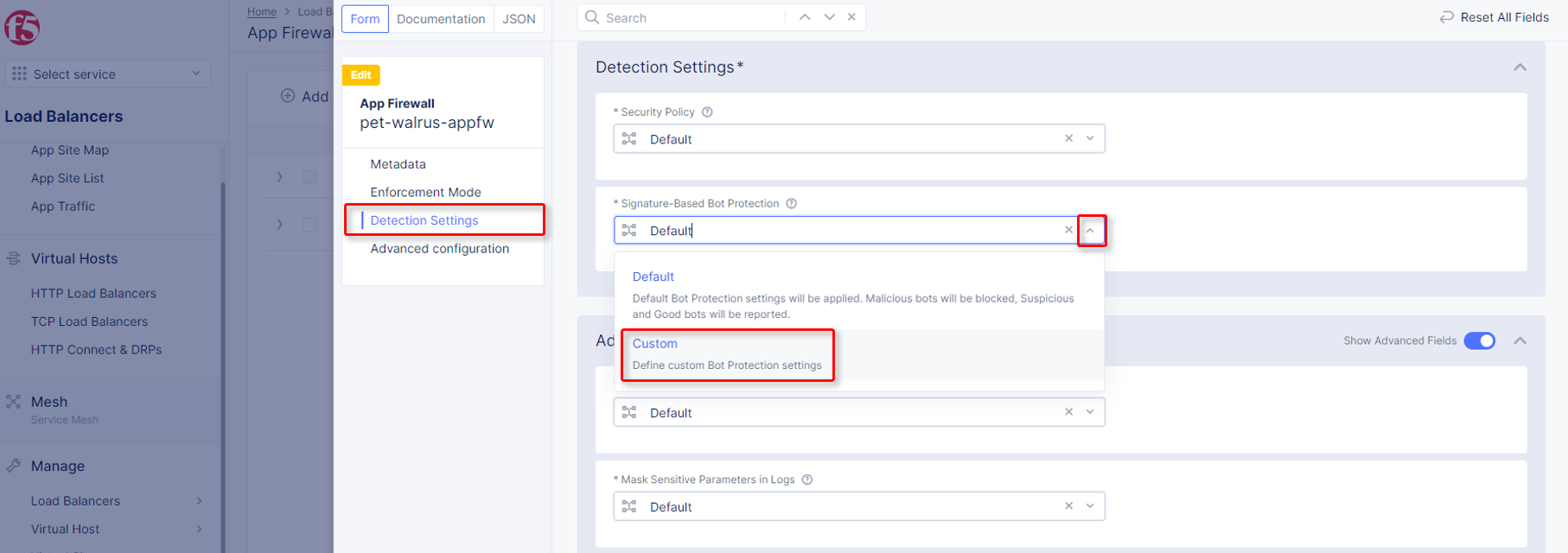
In the expanded configuration window, observe the three Bot signature categories;
Malicious, Suspicious,andGood. Also observe the actionsBlock, Ignore, andReportwhich can be reviewed by selecting one of the dropdowns.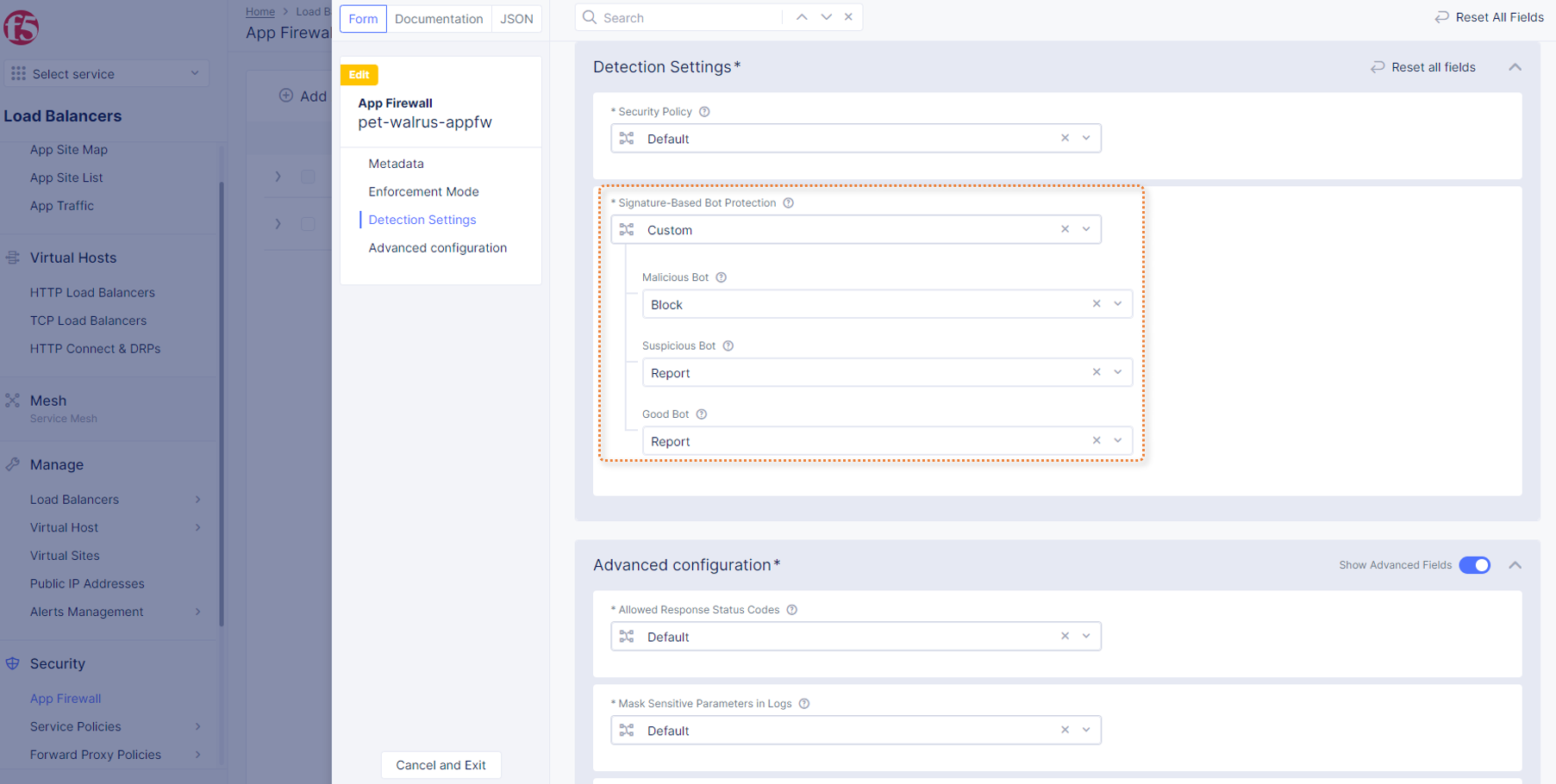
Click
Cancel and Exitto leave this window.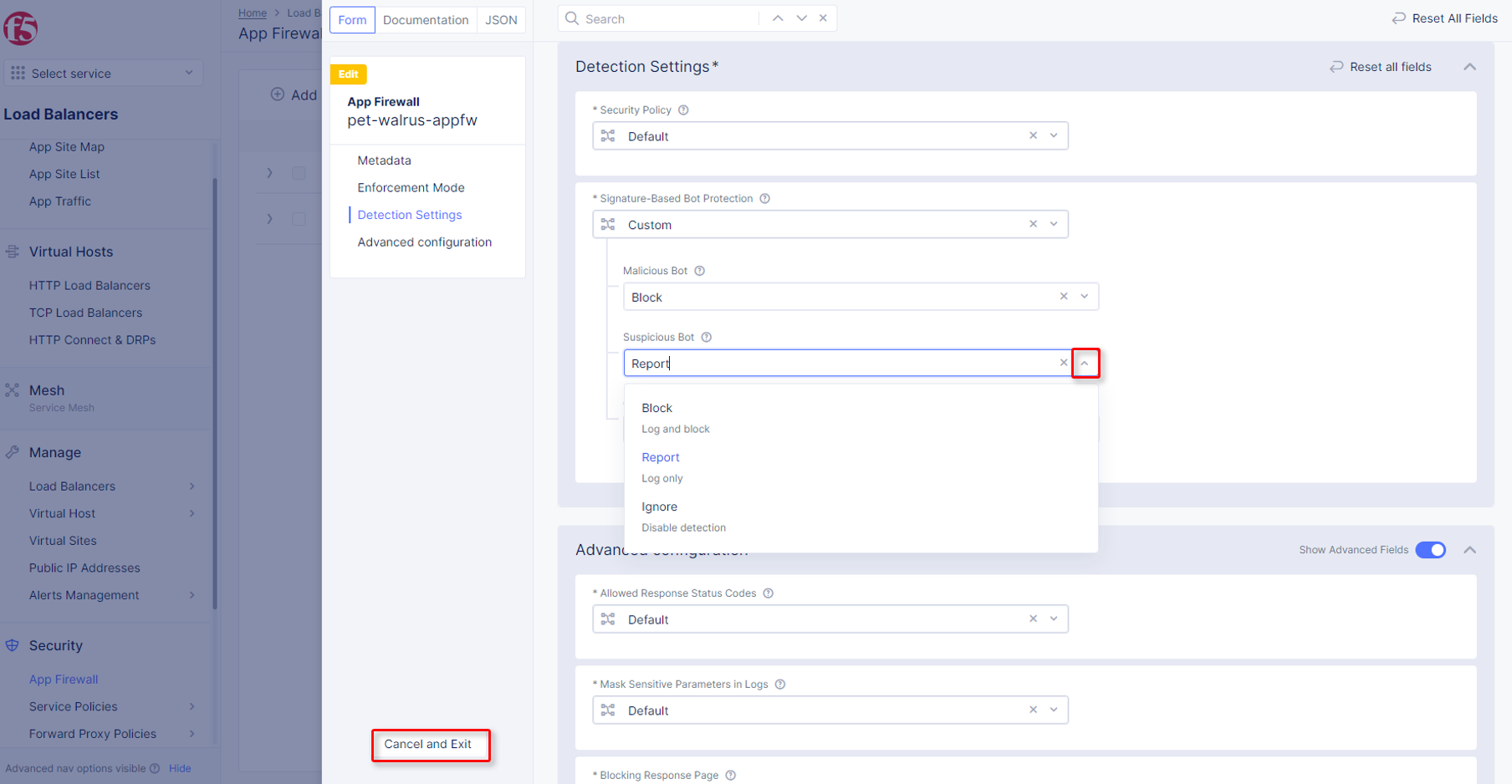
Open a terminal window or DOS prompt on your respective client and issue the following command: curl -v http://<namespace>lab-sec.f5demos.com. Observe the
User Agentand response content.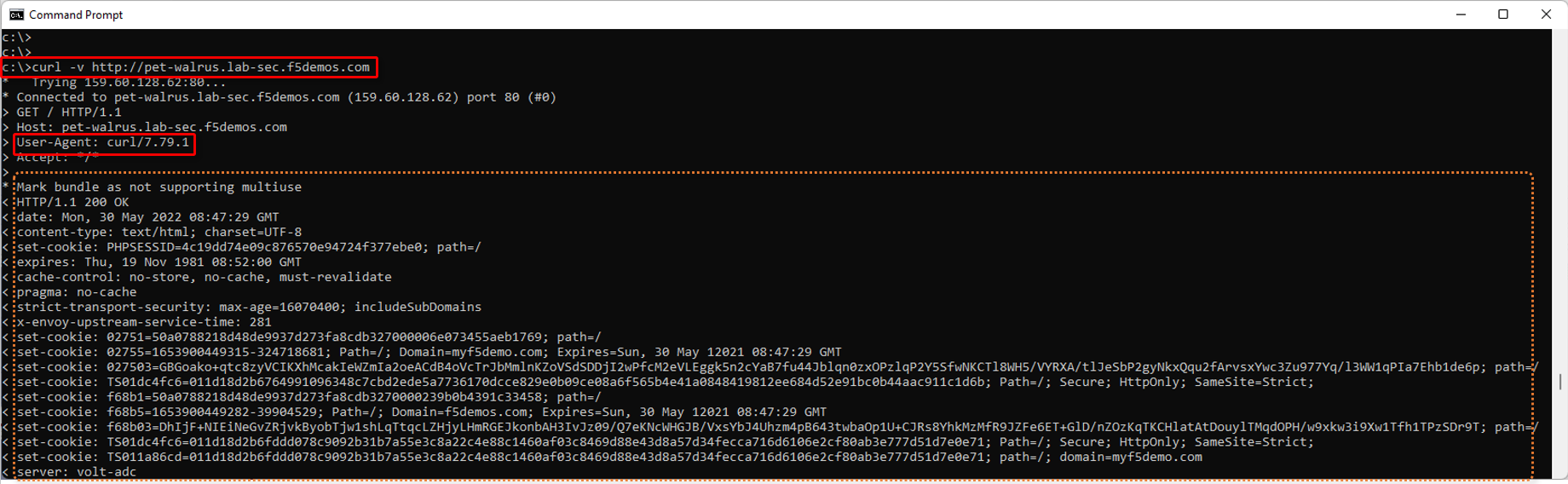
Return to the F5 Distributed Cloud Console, in the left-hand navigation menu, expand the
Virtual Hostssection, clickHTTP Load Balancers, select the http-load-balancer object, and select theSecurity Monitoring.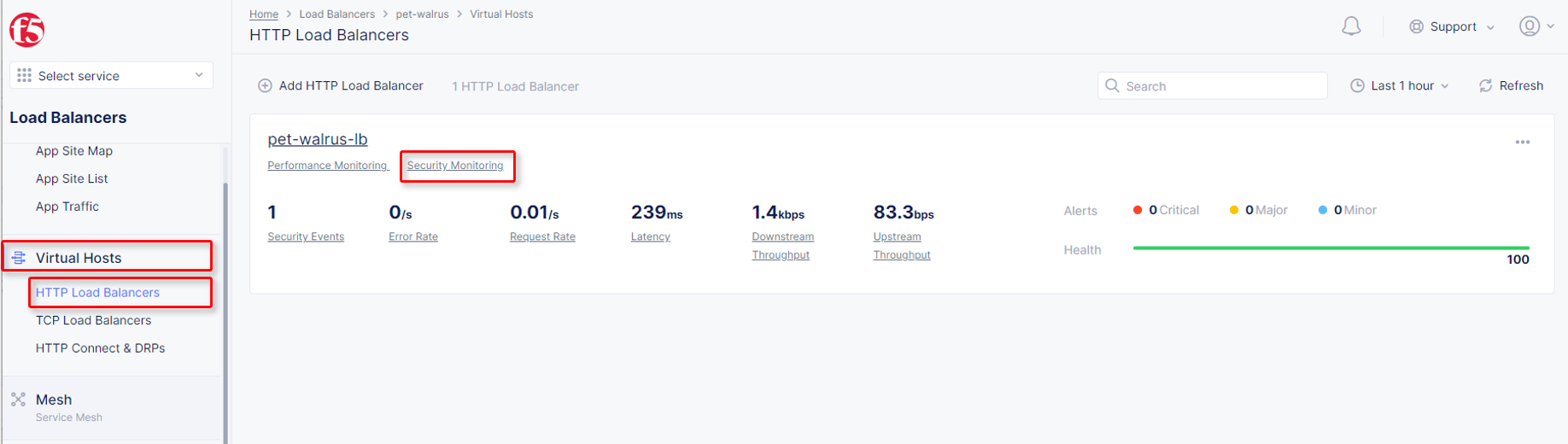
Select
Security Monitoring, and clickSecurity Events.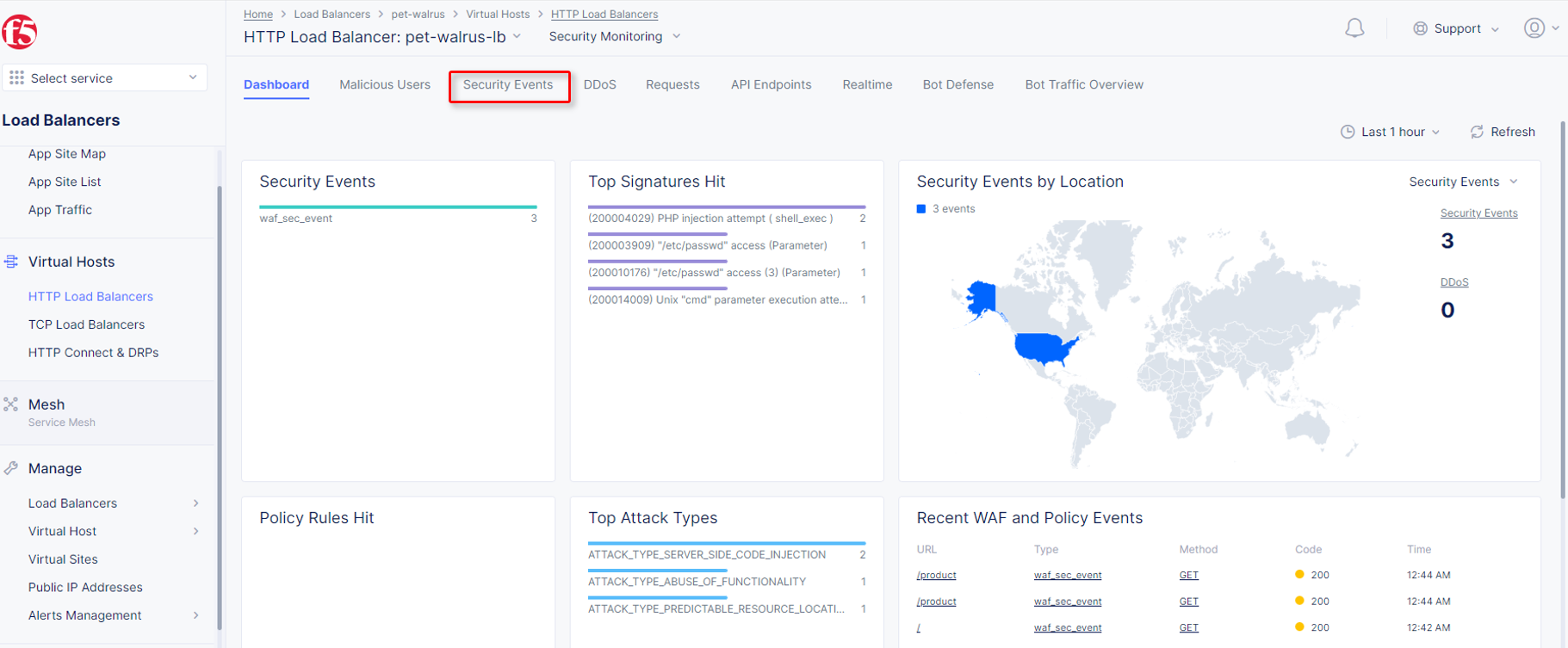
Locate the security event, which was triggered by the curl request, expand the security event, and observe the “Suspicious” Bot reporting. The setting for Suspicious Bot was set to Report.

AI-Driven BotDefense
Open another tab in a browser (Chrome shown), navigate to the application/Load Balancer configuration: http://<namespace>.lab-sec.f5demos.com
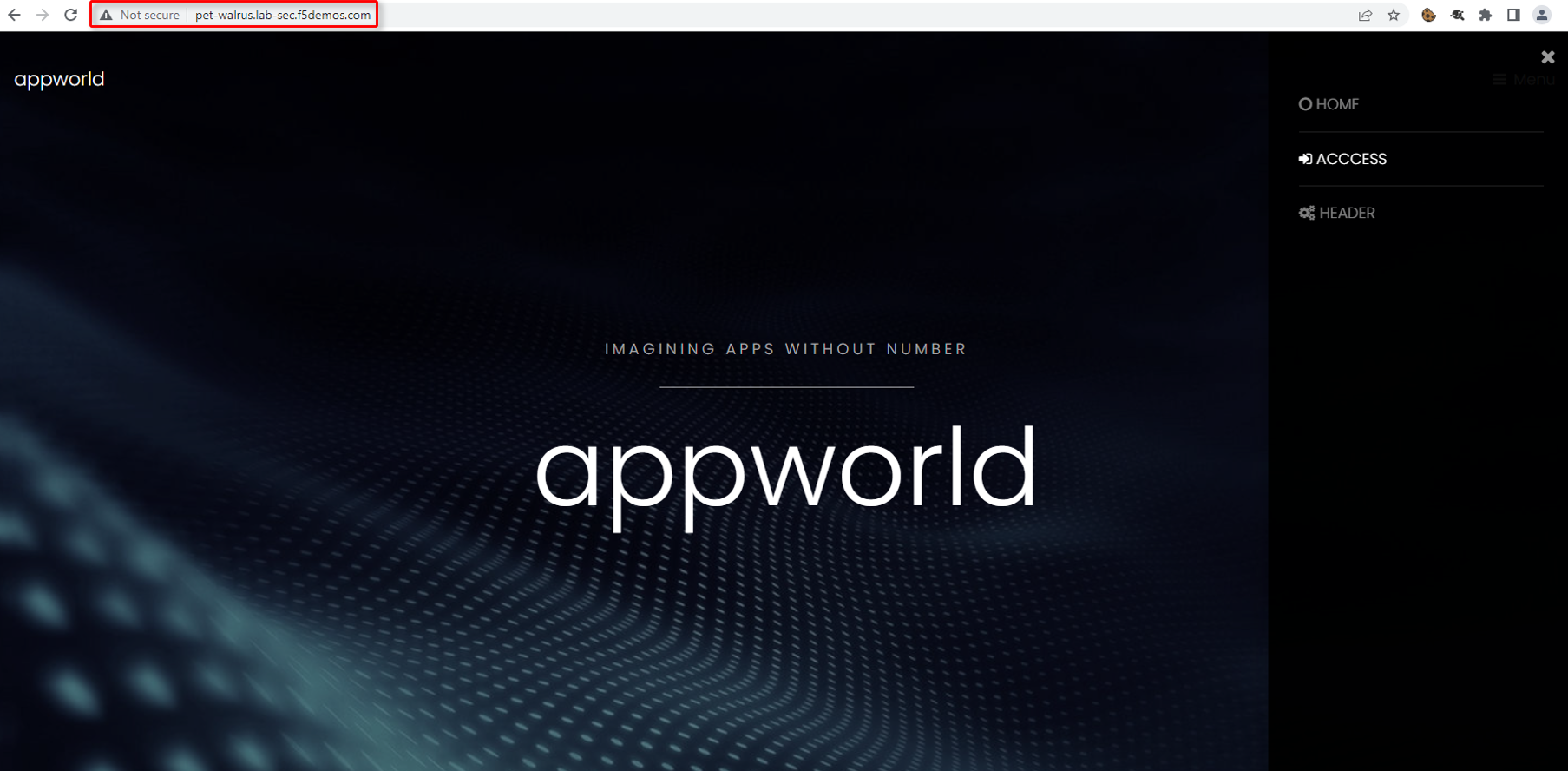
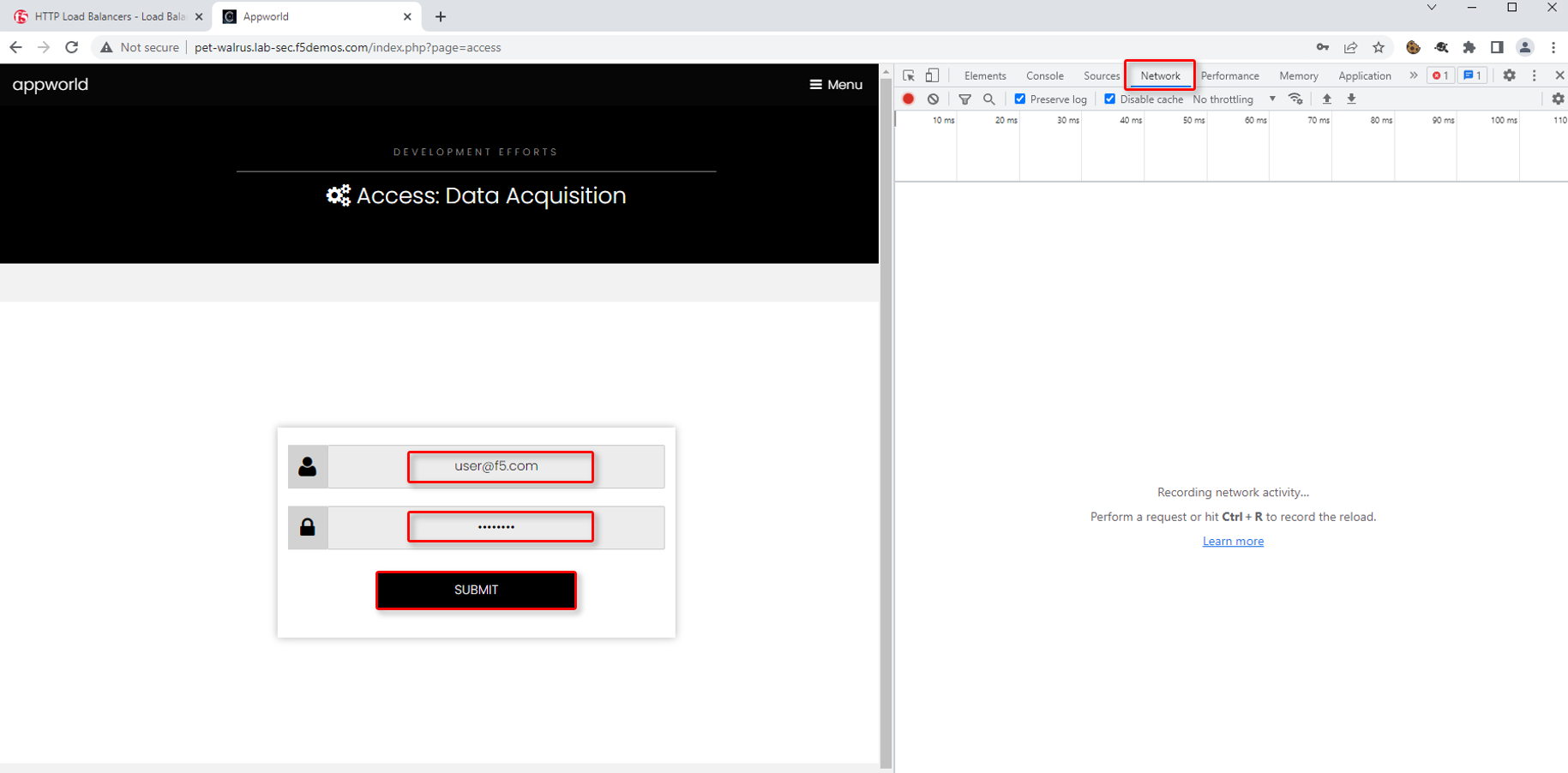
Enable developer tools (Chrome shown (use F12)) and click on the
Networktab, click the 3 bars/menu icon (top right browser), navigate toAccesslink. Login to the website using the following credentials.Identity: user@f5.com
Token: password
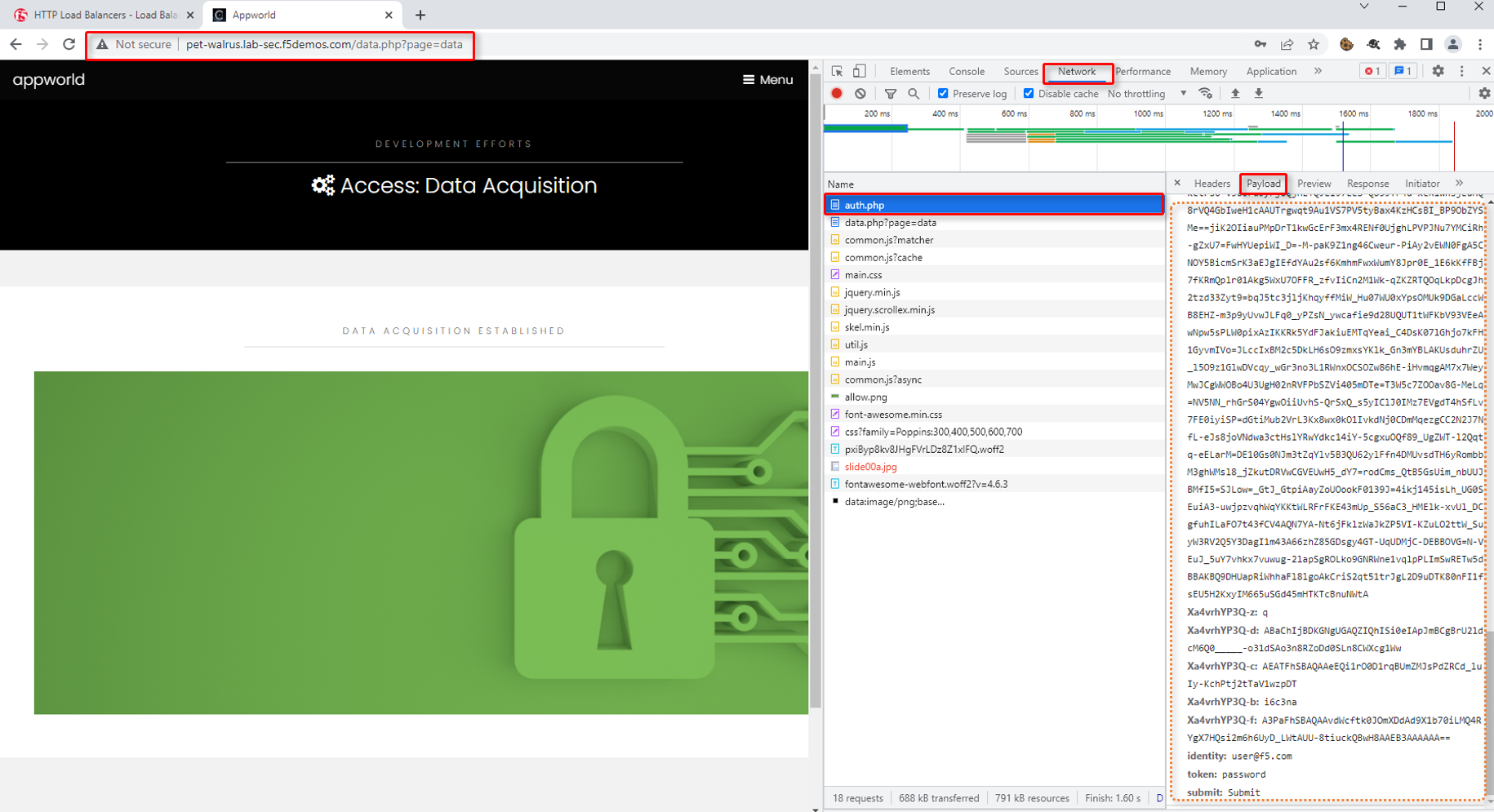
In the Developer window, locate the POST request that was made to the auth.php page. You may use the filter to find auth.php.
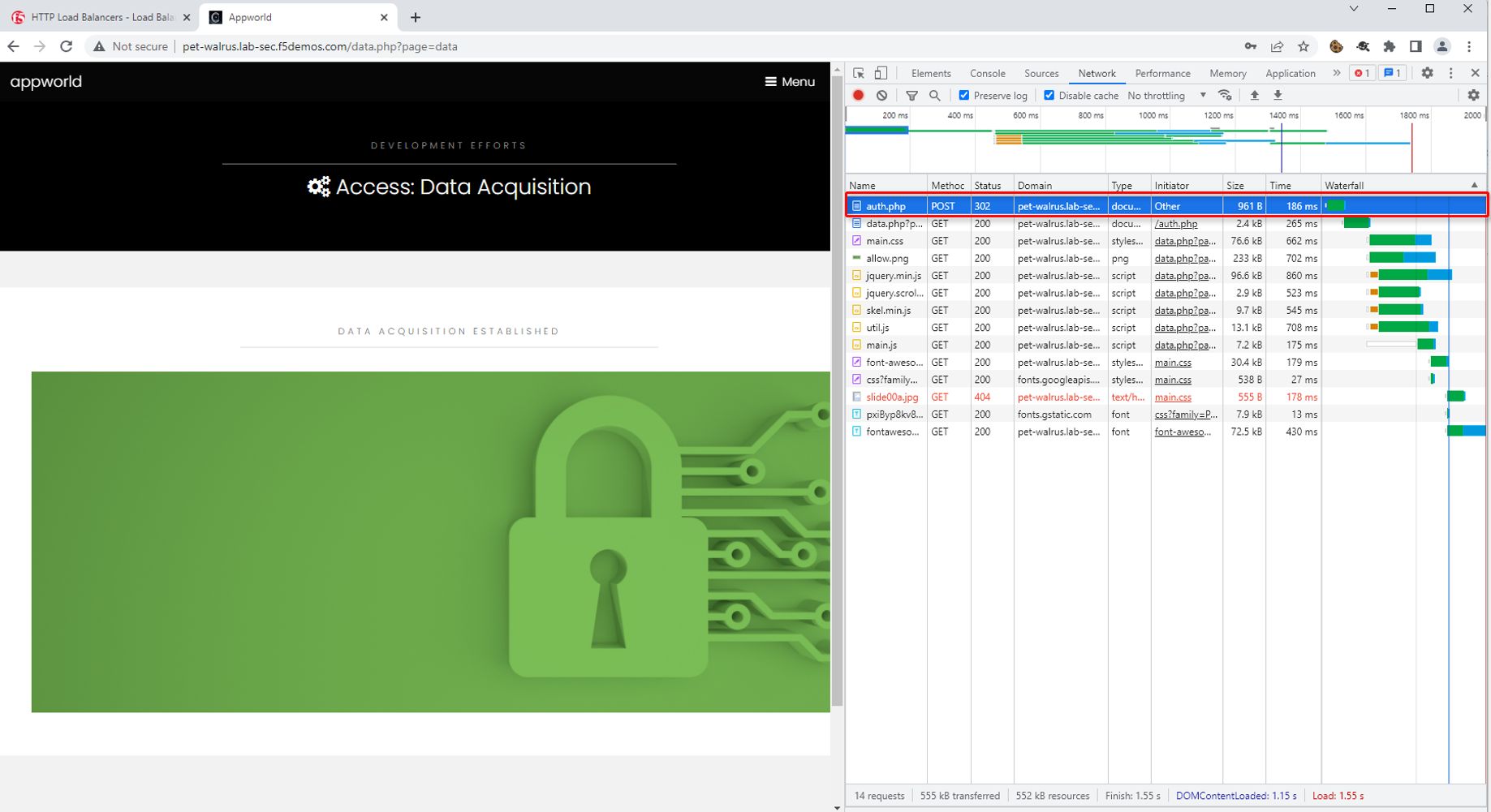
Select the
Requesttab in the payload window that appears and observe only a limited form POST data (identity, token, & submit).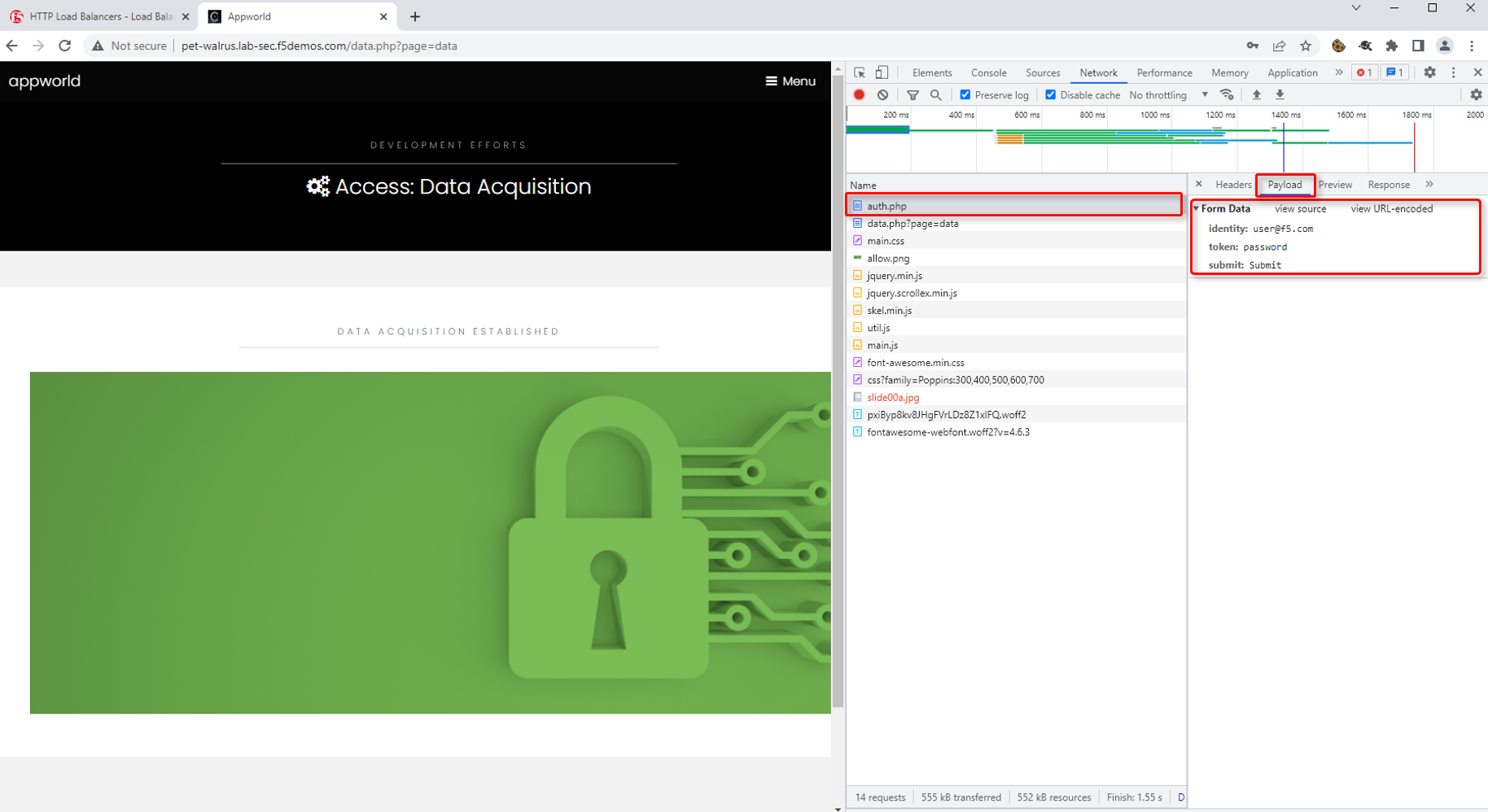
Navigate to:
Manage>Load Balancer>HTTP Load Balancers, click the Action Dots and clickManage Configuration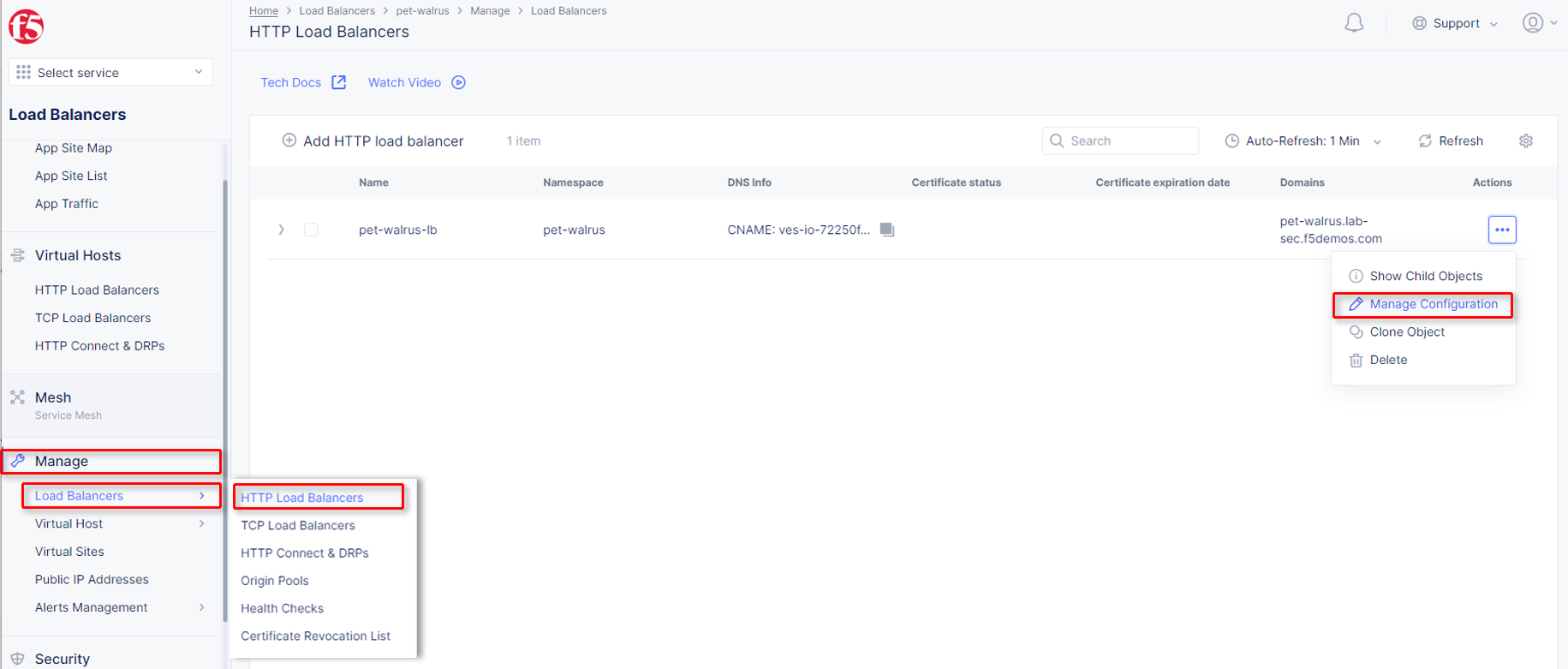
Click
Edit Configurationin the top right-hand corner.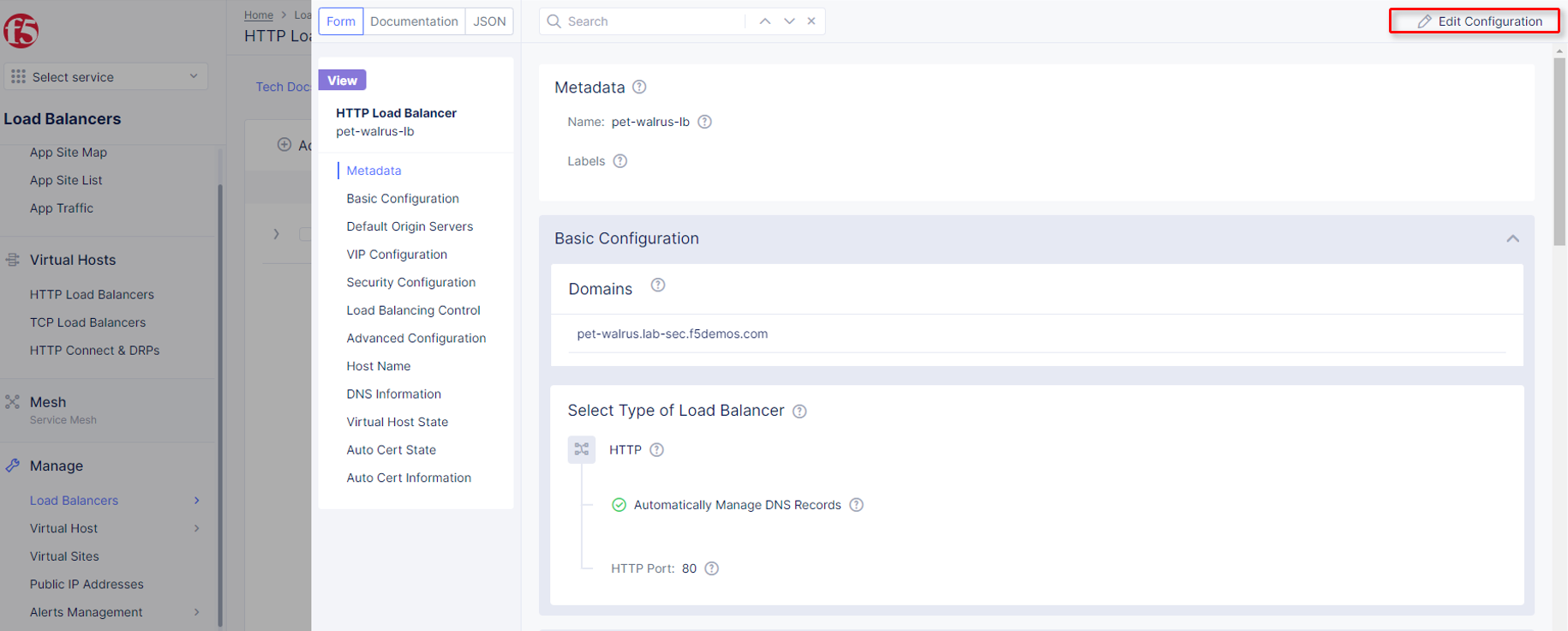
Click
Security Configurationin the left-hand navigation, on theBot Defense Configdropdown.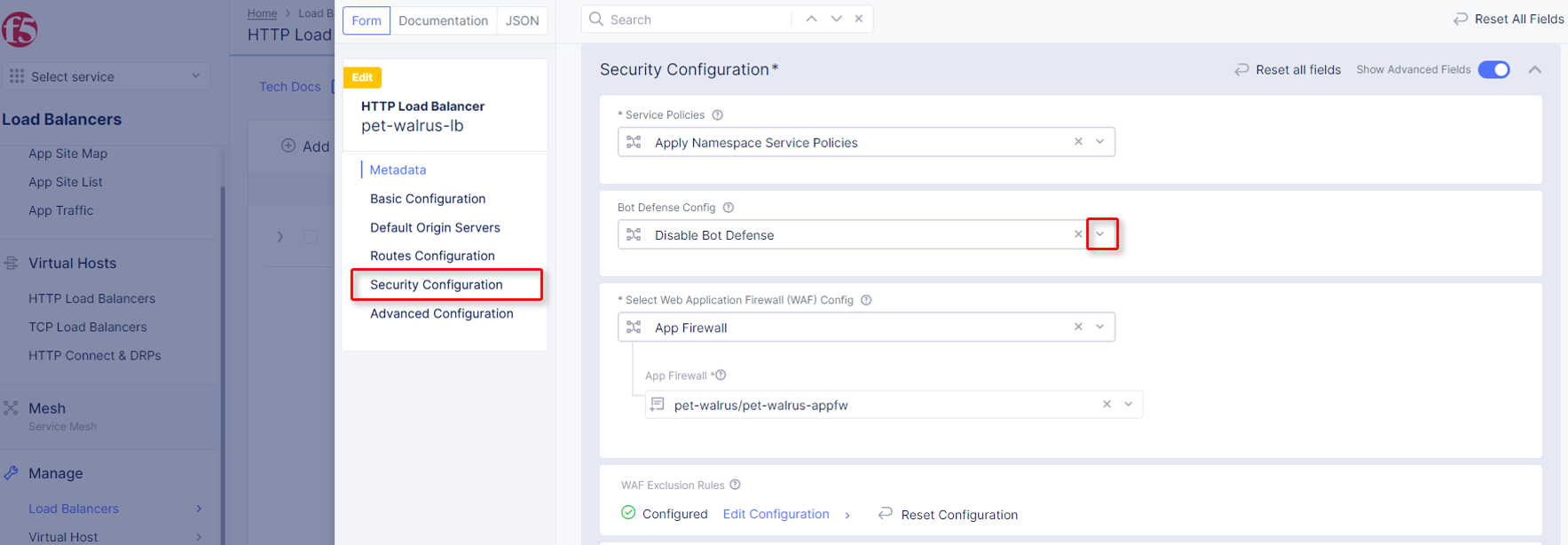
Select
Specify Bot Defense Configuration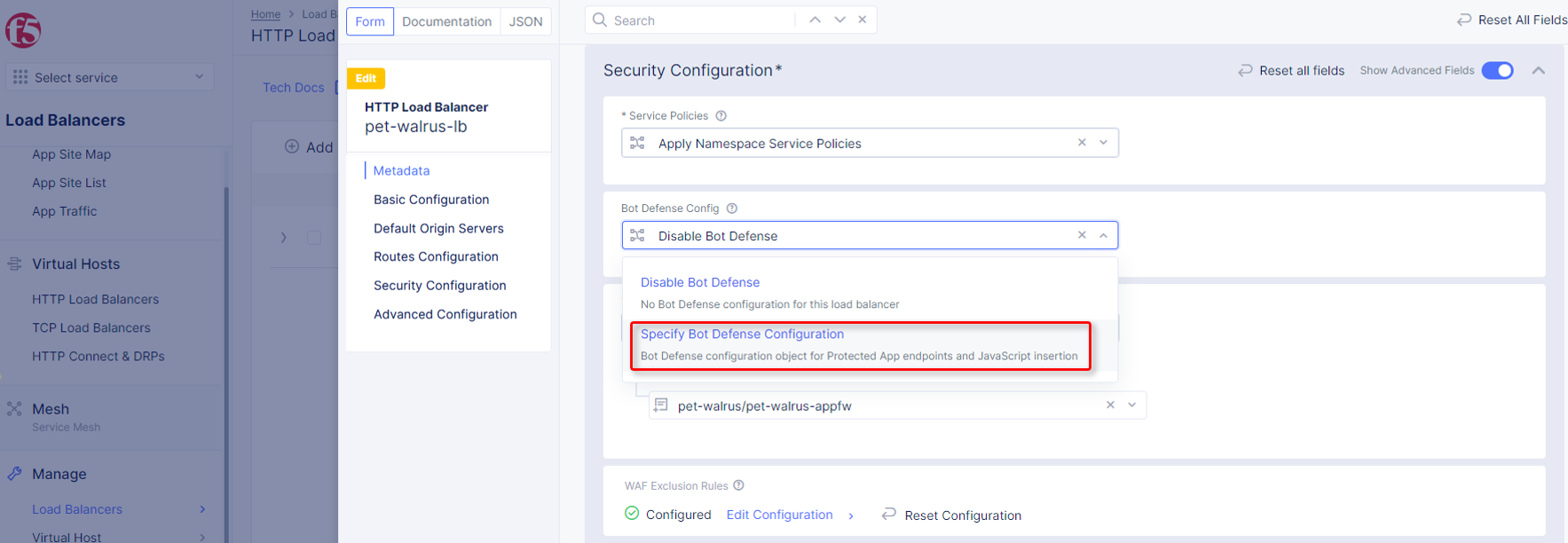
In the flyout click
Configure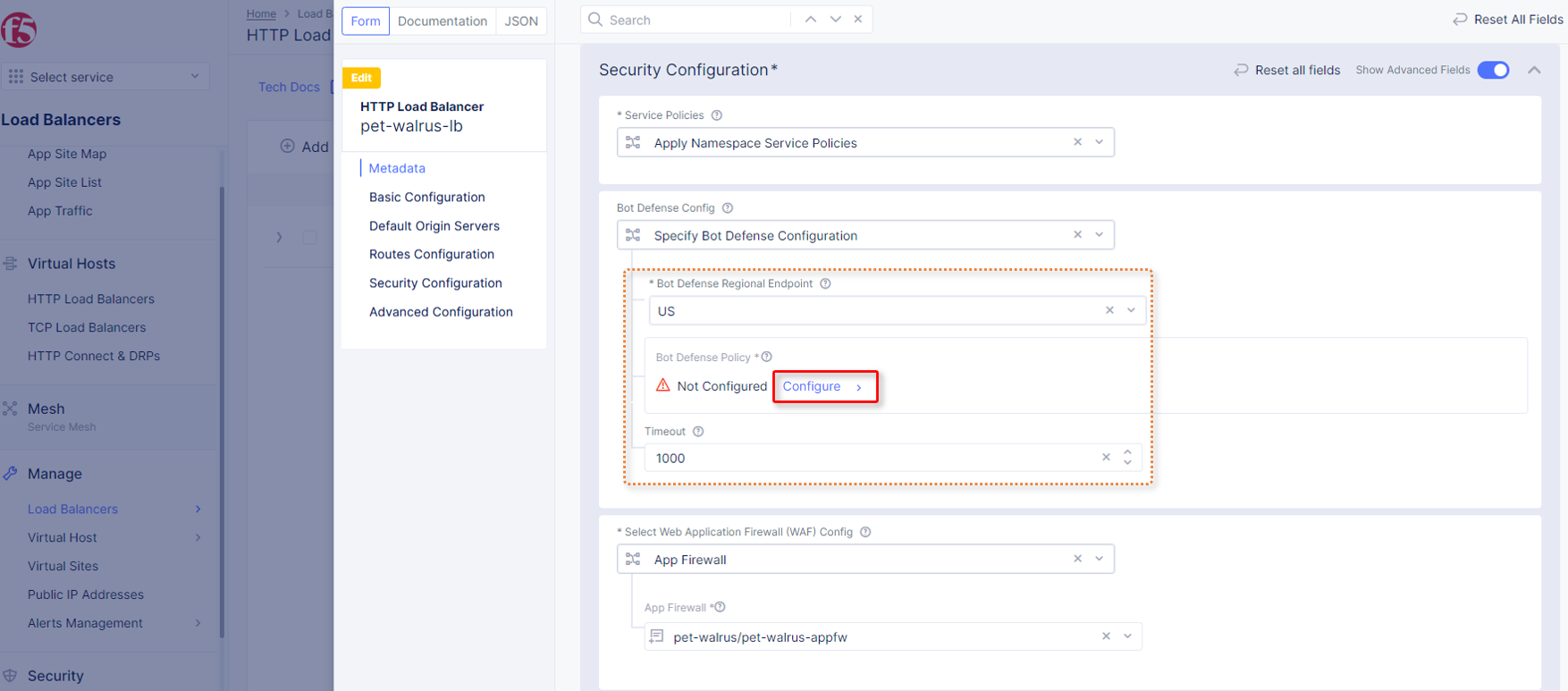
Locate the additional positioning options in the
JavaScript Insertionsection., clickConfigurein theProtected Endpoints Section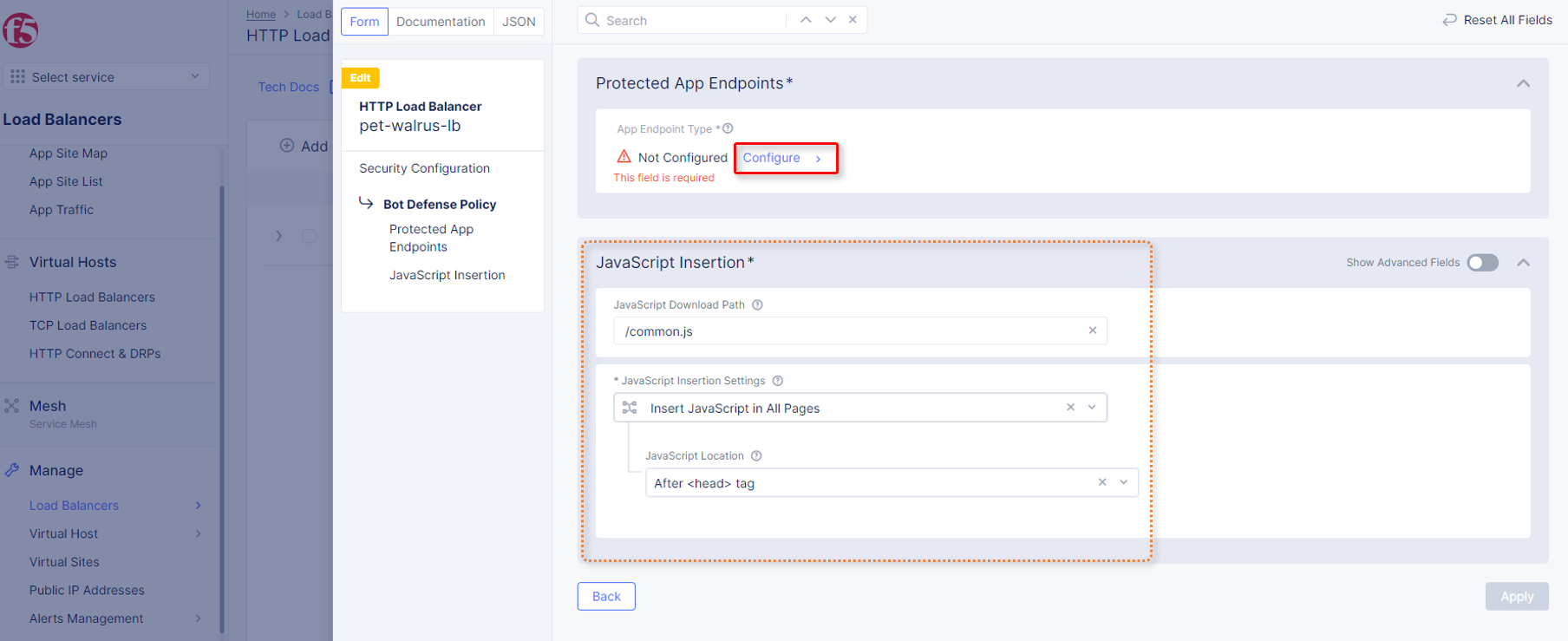
In the new
App Endpoint Typeclick
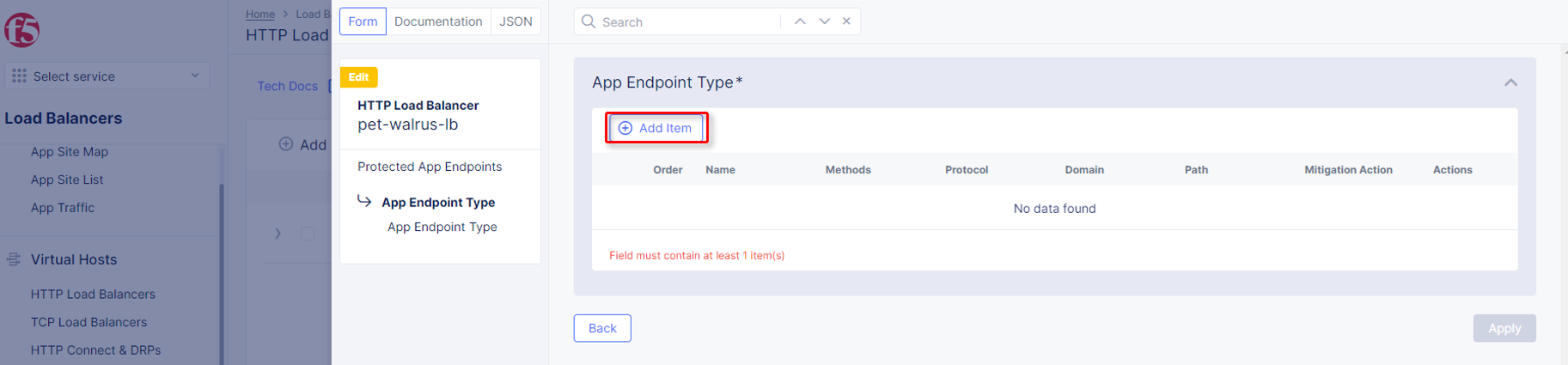
In the
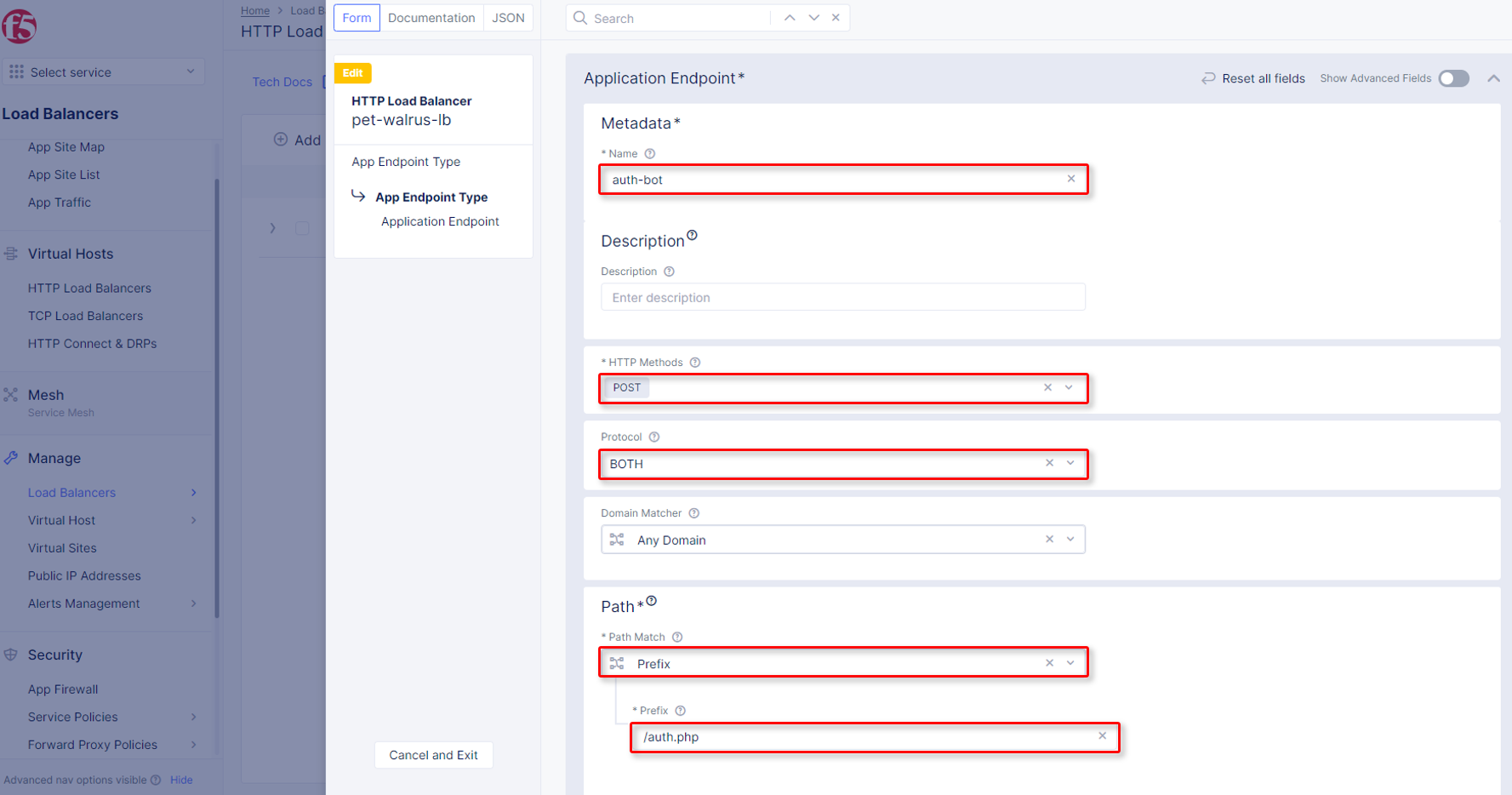
Application Endpointsection supply the following values:Metadata\Name: auth-bot
HTTP Methods: POST
Protocol: BOTH
Path\Path Match: Prefix
Prefix: /auth.php
Bot Traffic MitigationSelect Bot Mitigation Action: Block
Scroll to the bottom and click
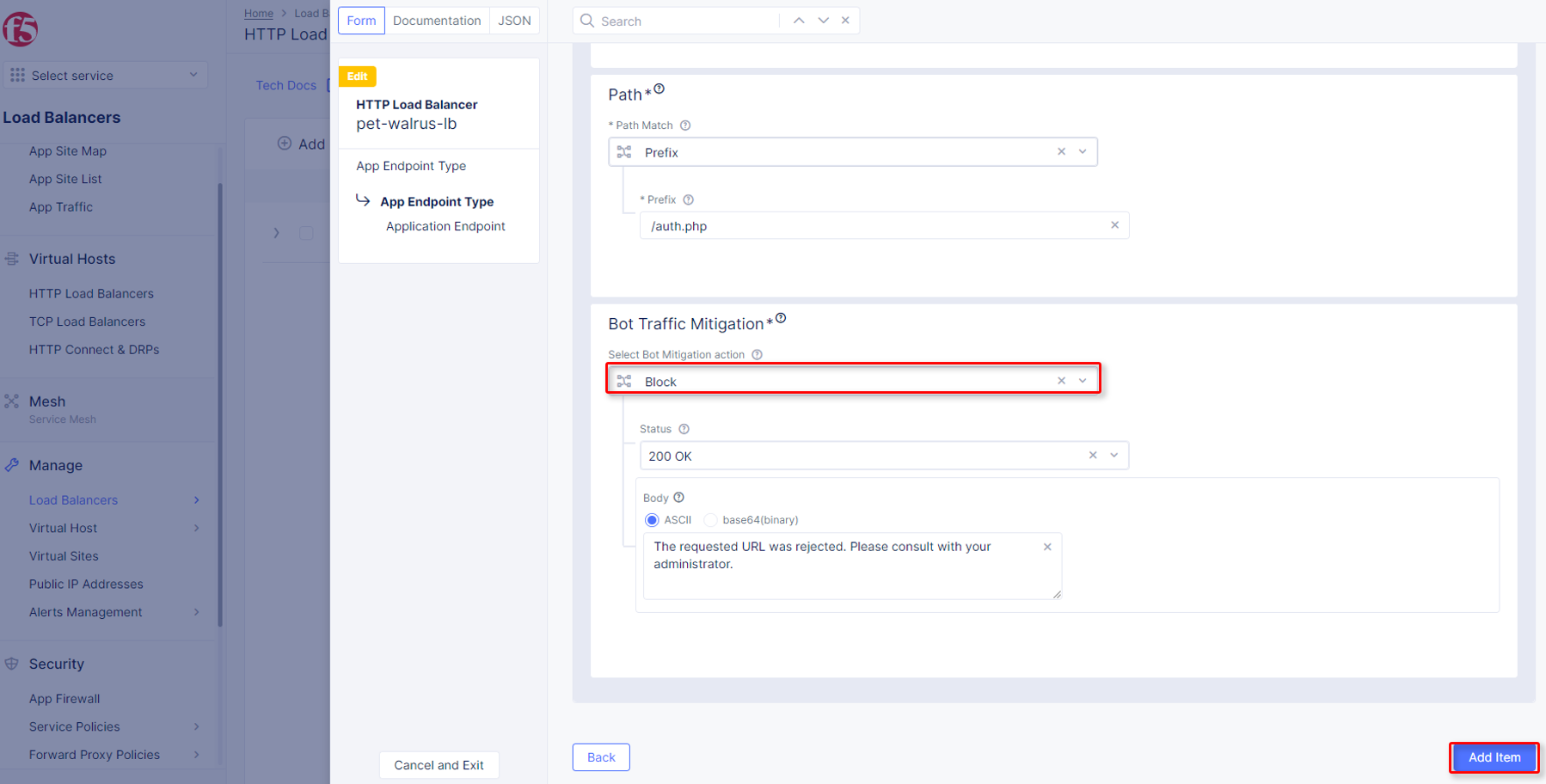
Click
 on the
 App Endpoint Typescreen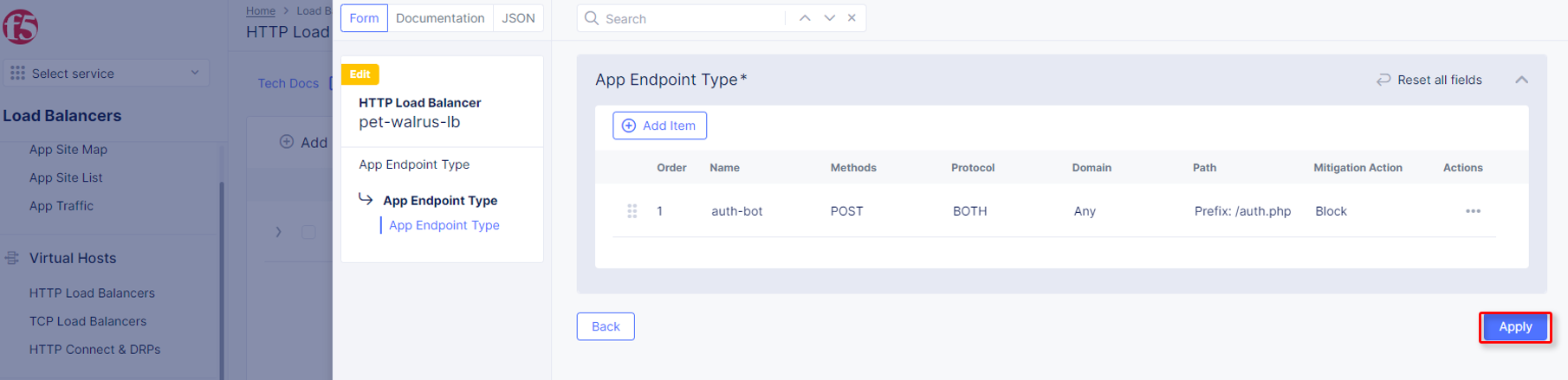
Click
on Protected App Endpoints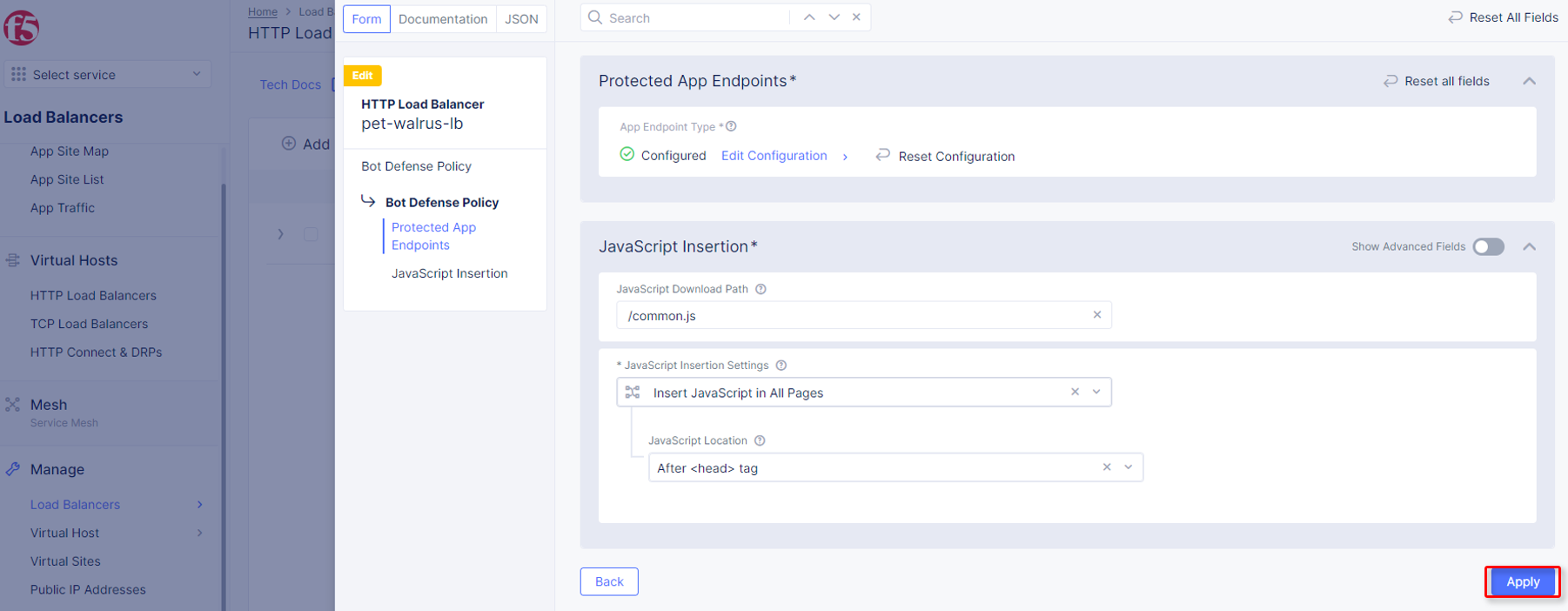
Scroll to the bottom on the
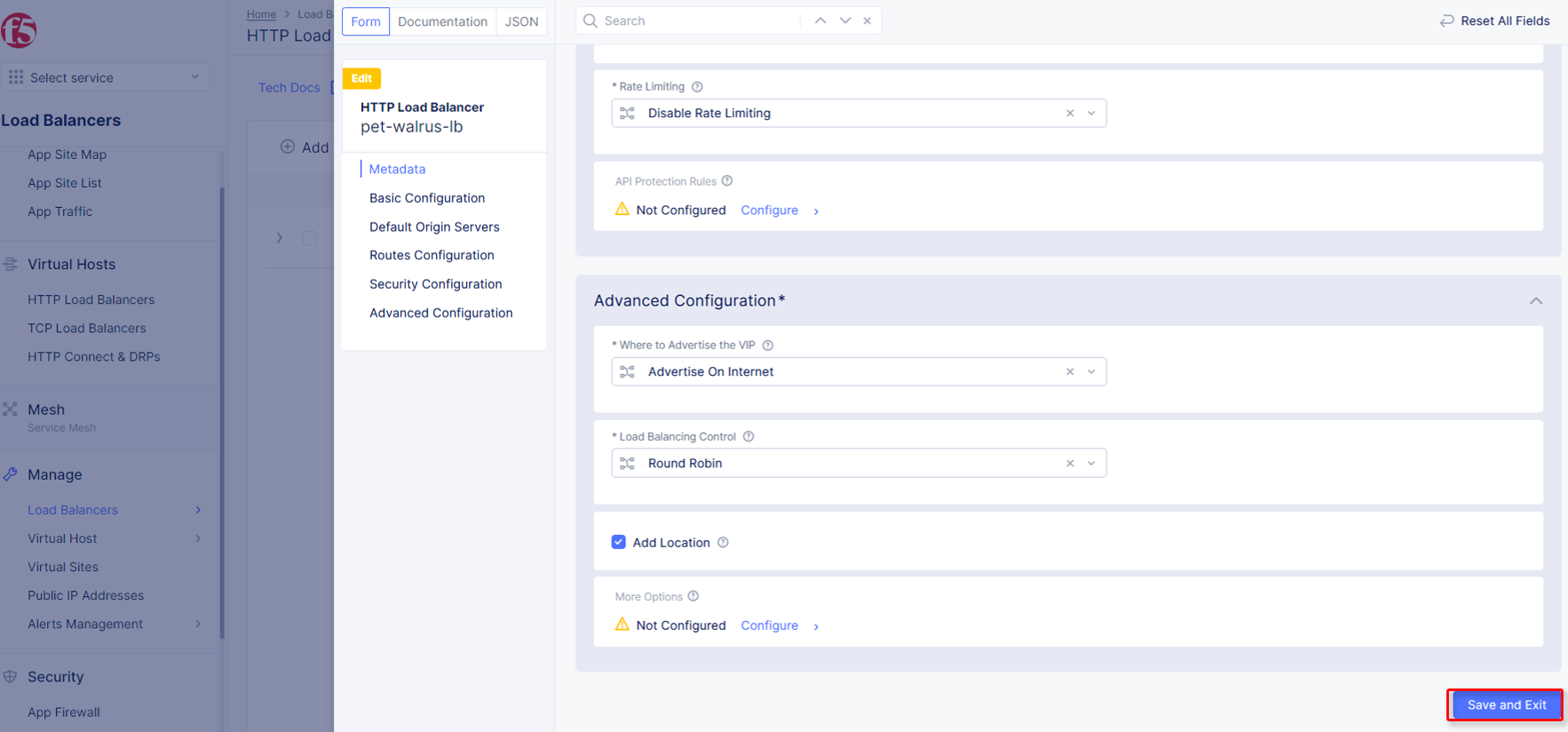
HTTP Load Balancerscreen, and click
Observe now that there is additional telemetry being passed in the POST request. This telemetry will be used to determine if the connecting client is an Automated Bot.